SignIn (Activity)
We want to know at least a valid e-mail address of our app users. Therefore they must create an account. So, if a user is not signed in, the app shows the SignInActivity. The UI is outlined below.
UI Functions
- User shall be able to sign in to an existing account with e-mail and password.
- User shall be able to reset the password for an existing account by requesting a "reset password" an e-mail.
- User shall be able to create a new account based on e-mail/password.
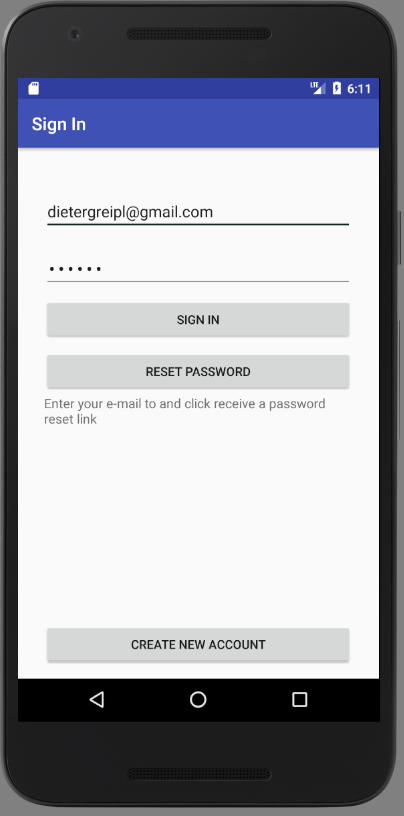
Layout
Navigate to /res/layout and change the layout file toLinearLayout. Check that orientation is vertical. Now add the following views:
- EditText for e-mail (with
android:id=@+id/idSignInEmail) - EditText for password (with
android:id=@+id/idSignInPassword) - Button to sign In (with
android:id=@+id/idSignInButtonSignIn) - Button to request "reset password" mail (with
`android:id=@+id/idSignInButtonResetPassword) - TextView explaining "reset password" behaviour
- Button to create a new account (with
android:id=@+id/idSignInButtonCreateAccount)
It is up to you, to display static texts as shown in the figure above.
A possible version (try to play with margins of LinearLayout):
<?xml version="1.0" encoding="utf-8"?>
<LinearLayout xmlns:android="http://schemas.android.com/apk/res/android"
    android:layout_width="match_parent"
    android:layout_height="match_parent"
    android:layout_marginBottom="15dp"
    android:layout_marginLeft="30dp"
    android:layout_marginRight="30dp"
    android:orientation="vertical">

    <EditText
        android:id="@+id/signInEmail"
        android:layout_width="match_parent"
        android:layout_height="wrap_content"
        android:layout_marginTop="50dp"
        android:ems="10"
        android:hint="E-Mail (will not be public)"
        android:inputType="textEmailAddress"
        android:text="[email protected]" />

    <EditText
        android:id="@+id/signInPassword"
        android:layout_width="match_parent"
        android:layout_height="wrap_content"
        android:layout_marginTop="20dp"
        android:ems="10"
        android:hint="Password"
        android:inputType="textPassword"
        android:text="123456" />

    <Button
        android:id="@+id/signInButtonSignIn"
        android:layout_width="match_parent"
        android:layout_height="wrap_content"
        android:layout_marginTop="11dp"
        android:text="Sign In" />

    <Button
        android:id="@+id/signInButtonResetPassword"
        android:layout_width="match_parent"
        android:layout_height="wrap_content"
        android:layout_marginTop="11dp"
        android:onClick="doResetPassword"
        android:text="Reset Password" />

    <TextView
        android:layout_width="match_parent"
        android:layout_height="wrap_content"
        android:layout_marginTop="2dp"
        android:ems="0"
        android:text="Enter your e-mail to and click receive a password reset link"
        android:textSize="15dp" />

    <Space
        android:layout_width="1dp"
        android:layout_height="0dp"
        android:layout_weight="1" />

    <Button
        android:id="@+id/signInButtonCreateAccount"
        android:layout_width="match_parent"
        android:layout_height="wrap_content"
        android:layout_alignParentBottom="true"
        android:onClick="doCreateAccount"
        android:text="Create New Account" />
</LinearLayout>
Note:
- There are values preset for mail and password.
- Margins are added with the attribute
android:layout_marginTop="30dp"
Logic
At this point we just wire the UI elements to the java code.
Prepare instance variables for UI fields
We declare instance variables for all UI views needed in the java code and initiate these variables in onCreate().
Declaration
EditText mEditTextEmail;
EditText mEditTextPassword;
Initialisation
mEditTextEmail = (EditText) findViewById(R.id.signInEmail);
mEditTextPassword = (EditText) findViewById(R.id.signInPassword);
Implement listener for buttons
Implement View.OnClickListener
Add the following code to respond to clicks to the buttons. We will complete functionality later.
@Override
    public void onClick(View v) {
        int i = v.getId();
        switch (i) {
            case R.id.signInButtonSignIn:
                doSignIn();
                return;

            case R.id.signInButtonResetPassword:
                doResetPassword();
                return;

            case R.id.signInButtonCreateAccount:
                doCreateAccount();
                return;
            default:
                return;
        }
    }
Attach the View.OnClickListener to buttons
Add the listener to the buttons in the onCreate method
        ((Button) findViewById(R.id.signInButtonSignIn)).setOnClickListener(this);
        ((Button) findViewById(R.id.signInButtonResetPassword)).setOnClickListener(this);
        ((Button) findViewById(R.id.signInButtonCreateAccount)).setOnClickListener(this);
Implement actions calls
We will complete the logic later. You might add some test logic now, e.g. displaying toast, if a button is pressed.
Activity Linking
All of our activities (except MainActivity) are called by another activity of our code. We use intents to do this (see next section). Add the following code to the method onStart() in MainActivity:
      if (currentUser ) {
            Log.d(TAG, "User not authenticated! ");
            Intent intent = new Intent(getApplication(),
                    SignInActivity.class);
            startActivity(intent);

        } else {
            Log.d(TAG, "User authenticated.");
        }
Declare variable currentUser accordingly and test.